

scope parameters you specify in the Connect URL will override these dashboard settings.
string
required
The application’s unique identifier. To find this value in the dashboard, navigate to the configuration page, then the application details tab.
string
The URI a user will be redirected to after authorization. This value must match one of the redirect URIs set in the credentials tab of the dashboard.The redirect is optional for
response_type=none: if you set one, the user is redirected to it after authorization as usual; if you do not, the flow ends on a Smartcar-hosted completion page that tells the vehicle owner the connection succeeded.The first redirect URI you add to your application is automatically set as the default. If you do not specify a redirect_uri in your Connect URL, Smartcar will use this default URI. You can add multiple URIs and set any of them as the default in the Smartcar Dashboard.string
required
Determines how the Connect flow completes.
code— the OAuth2 Authorization Code flow. Smartcar redirects the user to yourredirect_uriwith an authorization code your application exchanges for an access token. Aredirect_uriis required.none— the flow completes without returning an authorization code. Use this if your application authenticates with application access tokens, which don’t require a code exchange. Aredirect_uriis optional.
vehicle_id of a previously connected vehicle.[permissions]
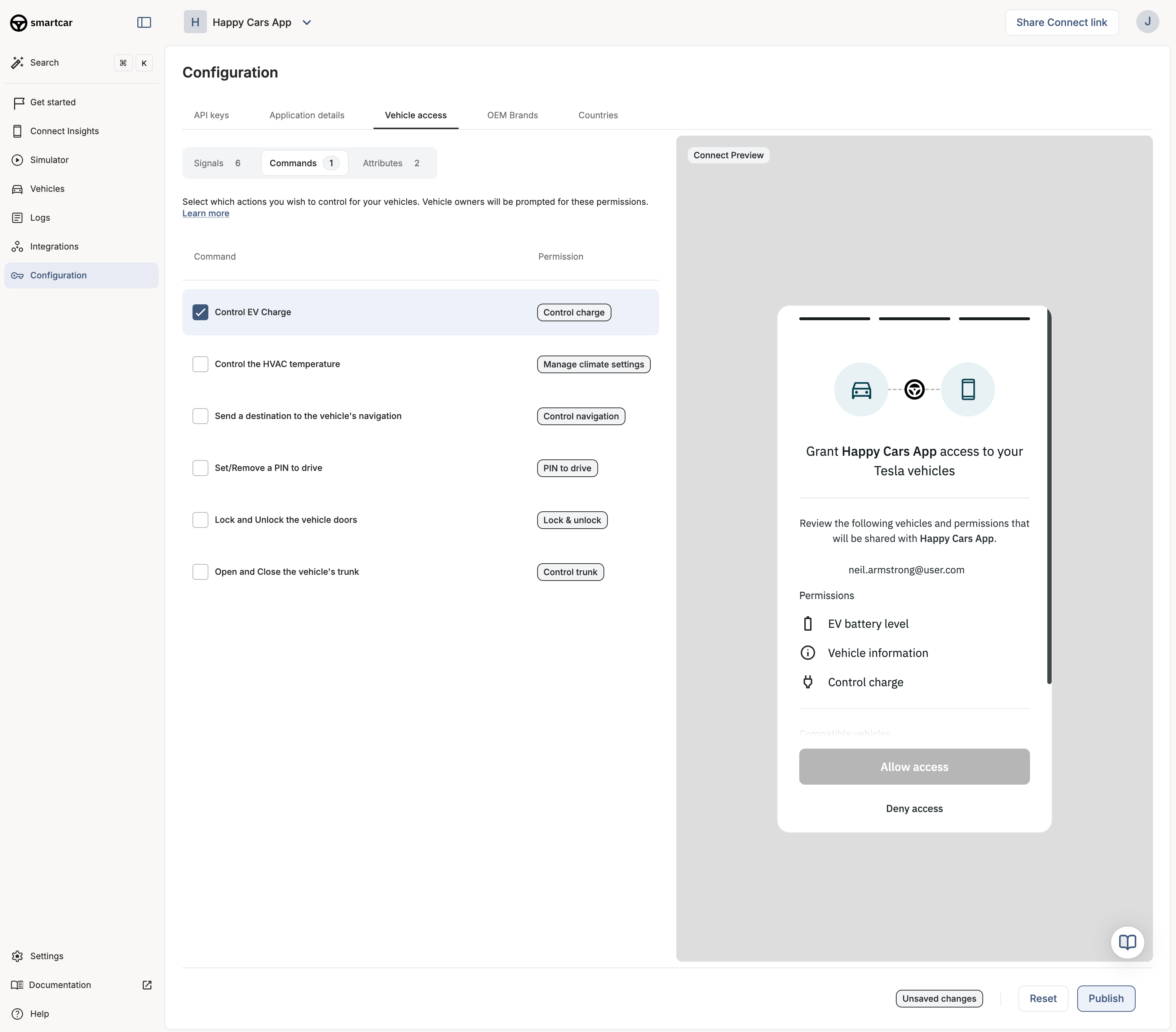
A space-separated list of permissions that your application is requesting access to. The valid permission names can be found in the permissions section.A permission is optional by default: it appears checked on the grant screen and the vehicle owner can uncheck it before connecting. Add the If you don’t specify a
required: prefix to a permission name (e.g. required:read_odometer) to lock it on the grant screen so the owner cannot uncheck it. At least one permission must remain selected for the owner to complete the connection.Only add the required: prefix to permissions that are absolutely necessary for your application to function. Avoid marking permissions as required if they are not necessary for your application to provide services to drivers.The
required: prefix controls only whether the owner can uncheck a permission. It does not filter which vehicles can connect, and it behaves the same in all regions. If a vehicle does not support a permission you requested, you receive a VEHICLE_NOT_CAPABLE error when you call that endpoint, not during Connect. To restrict connections by powertrain type, use Connection Filters.scope parameter, Smartcar will use the permissions configured in the “Vehicle Access” tab of your application’s Configuration page in the Dashboard. Any scope parameters passed in the Connect URL will override those dashboard settings.string
An optional value included as a query parameter in the
REDIRECT_URI back to your application. This value is often used to identify a user and/or prevent cross-site request forgerystring
default:"auto"
An optional value that sets the behavior of the approval dialog displayed to the user.
Defaults to
auto and will only display the approval dialog if the user has not previously approved the scope.
Set this to force to ensure the approval dialog is always shown to the user even if they have previously approved the same scope.ENUM
default:"live"
string
Allows users to bypass the Brand Selector screen. Valid
makes can be found in the makes section on API reference.
The single_select_vin parameter takes precedence over this parameter.bool
default:"false"
Sets the vehicle selection behavior of the grant dialog. If set to true, then the user is only allowed to select a single vehicle. Please refer to the Single Select section for more information.This parameter is only available in the Custom Plan.
string
Sets the behavior of the permissions screen in Smartcar Connect.
When using
single_select_vin, you need to pass in the VIN (Vehicle Identification Number) of a specific vehicle into the single_select_vin parameter.
Additionally, you need to set the single_select parameter to true.
Smartcar Connect will then let the user authorize only the vehicle with that specific VIN.
The single_select_vin parameter takes precedence over the make parameter.
Please refer to the Single Select section for more information.This parameter is only available in the Custom Plan.[flags]
A space separated list of feature flags in the form
{flag}:{value}.string
Your application’s own identifier for the vehicle owner, stored on the connection so you can match it to your records. It is returned as
externalId by the /connections endpoint, which also accepts it as a filter, and included in webhook payloads as user.externalId. Dashboard uses it to aggregate Connect analytics for each vehicle owner.This parameter is optional, but we strongly recommend setting it on every Connect session, whichever response_type you use. It is the simplest way to tie a connection back to a specific user in your system.The value must be 100 characters or fewer and may contain only letters, numbers, periods, underscores, and hyphens (^[a-zA-Z0-9._-]+$). A value that doesn’t meet these requirements is not stored.When a vehicle owner reconnects, the stored value is replaced by the external_id of the new Connect session, but only if it is provided. Reconnecting with external_id=null clears the stored value.